Figma Motion: Shipping Animation Without Leaving the Canvas
The new reality: motion isn't a handoff anymore
For years, “add motion” meant “export a thing, rebuild it somewhere else, then argue about easing curves in a Slack thread.” That workflow didn't just waste time, it quietly punished good design decisions. If motion lived in a separate tool, it rarely made it into the product with the same intent.
Config 2026 was Figma's not-so-subtle message that this era is ending. With Figma Motion in open beta, plus shader effects, Weave tools, and a more capable Figma agent, the canvas is turning into a place where UI, motion, and production constraints can actually meet.
Let's talk about what this changes for design teams, what to try first, and what to not do unless you enjoy maintaining a timeline spaghetti bowl.
What Figma Motion actually is (and why it matters)
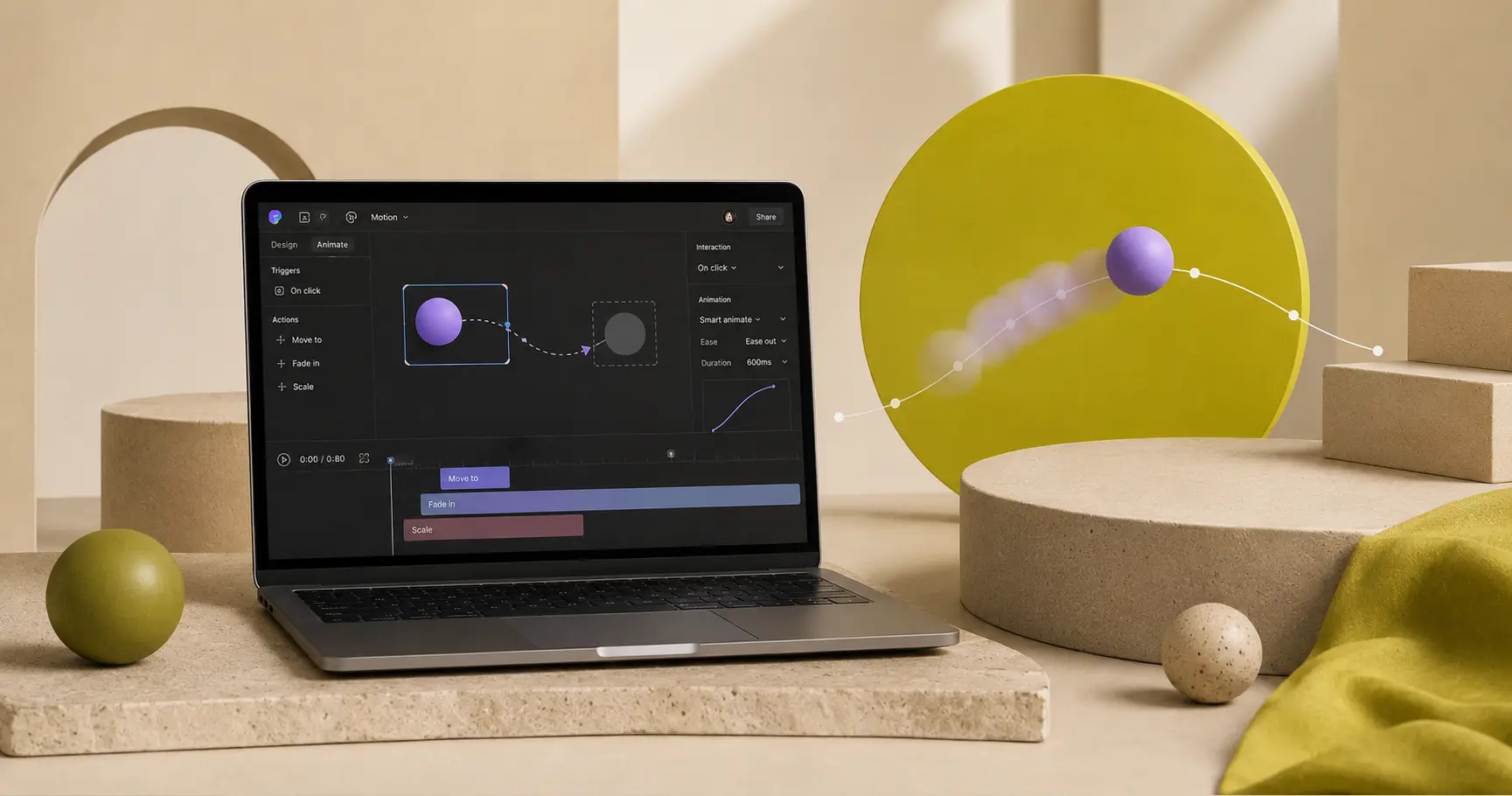
Figma Motion lets you create production-ready animations directly inside your design files, using timelines, keyframes, presets, and controls like easing curves and spring animations. The big deal isn't that Figma can animate. The big deal is that motion is now collaborative, versionable, and reviewable in the same place as the rest of the system.
Three practical wins
- One source of truth: UI states and their transitions live together, so interaction intent is harder to “misinterpret” on the way to build.
- Design systems can include motion: timing and easing variables, plus animated components, push teams toward repeatable patterns instead of one-off flair.
- Better handoff: Dev Mode includes a read-only timeline for inspecting animations, and Figma supports copying code into CSS, JSON, or React, with additional context sharing via the Figma MCP server.
How to adopt Motion without creating chaos
If your team is already moving fast, adding animation tools can feel like handing out espresso shots at a toddler birthday party. The trick is to treat Motion as a system, not a feature.
1) Start with a motion vocabulary, not a timeline
Before you animate anything, decide what “normal” looks like. Pick a small set of durations, easings, and springs that match your brand and product density. Then translate those into variables so they're reusable.
A simple starter set is enough:
- Fast: 120–160ms for micro-interactions
- Standard: 200–240ms for state changes
- Expressive: 300–450ms for onboarding moments and empty states
Once you have this, Motion becomes a way to apply rules consistently, not a place to improvise every transition.
2) Animate components, not screens
It's tempting to animate entire flows, especially now that you can. Resist. Your highest ROI is in components that repeat across the product: buttons, toggles, menus, modals, toasts. If you animate at the component level, your product feels polished everywhere, and you don't end up with a bespoke animation for each page that nobody can maintain.
3) Use the agent for the first draft, then apply taste
Figma's agent can generate a first pass of motion by describing what you want, and it can add keyframes to the timeline. That's useful for getting momentum, exploring options, and avoiding blank-canvas paralysis. It's not a substitute for taste.
Try prompts like:
- “Animate this modal so it feels calm and deliberate, no bounce, prioritize legibility.”
- “Make this menu open quickly, but close slightly slower so it doesn't feel abrupt.”
Then adjust easing and timing to match your system. The agent gets you moving, you make it correct.
Shaders + Weave: the rise of 'design materials'
Motion isn't the only new “material” on the canvas. Config 2026 also introduced custom shader effects and fills, and Weave tools embedded right in Figma Design.
Shaders: personality with guardrails
Shaders can be prompted through the agent, saved, reused, and rendered natively with WebGPU, so they behave more like a first-class property than a hacky overlay. This is where brand teams should pay attention: shaders make it easier to create signature texture, depth, and motion-aware effects without baking everything into static images.
One sane use case: define a small set of brand shader styles (grain, glow, soft depth), then reuse them across marketing and product surfaces. If you let everyone invent their own, you'll get twelve kinds of “subtle grain,” and none of them will be subtle.
Weave tools: repeatable image tasks, less prompt roulette
Weave tools in Figma Design give you a UI for common AI image tasks like background replacement, logo placement on products, and aspect ratio changes. The point is consistency and repeatability. Instead of re-prompting from scratch every time, you swap inputs and re-run a workflow.
This is also a good moment to revisit how your team creates briefs. A tighter brief produces tighter outputs, whether you're using Weave tools or something like pixelbrief.ai to generate AI-ready creative direction for concepting and asset exploration.
A simple rollout plan for real teams (not idealized ones)
- Pilot on one surface: pick a single flow (onboarding, search, checkout) and standardize motion patterns there first.
- Document the rules: publish a short motion spec, durations, easings, and do/don't examples.
- Build a component pack: ship animated versions of your core components, and make them the default.
- Agree on sign-off: decide who approves changes to motion variables and animated components, because otherwise it becomes “whoever touched it last.”
Conclusion: the canvas got bigger, so your standards have to
Figma Motion is going to tempt teams into animating everything. Don't. The win isn't more motion, it's better motion that survives the trip to production.
If you treat Motion like a system, use the agent as a draft partner, and keep shaders and Weave workflows on a short leash, you'll ship work that feels intentional, not caffeinated.
Want help turning all of this into repeatable briefs your team can actually use? Try pixelbrief.ai, then bring the results into your Figma workflow with clear constraints and a little professional skepticism.
Further reading: Figma's overview of what's new from Config 2026 is worth bookmarking if you're rolling this out across a team.